Apify
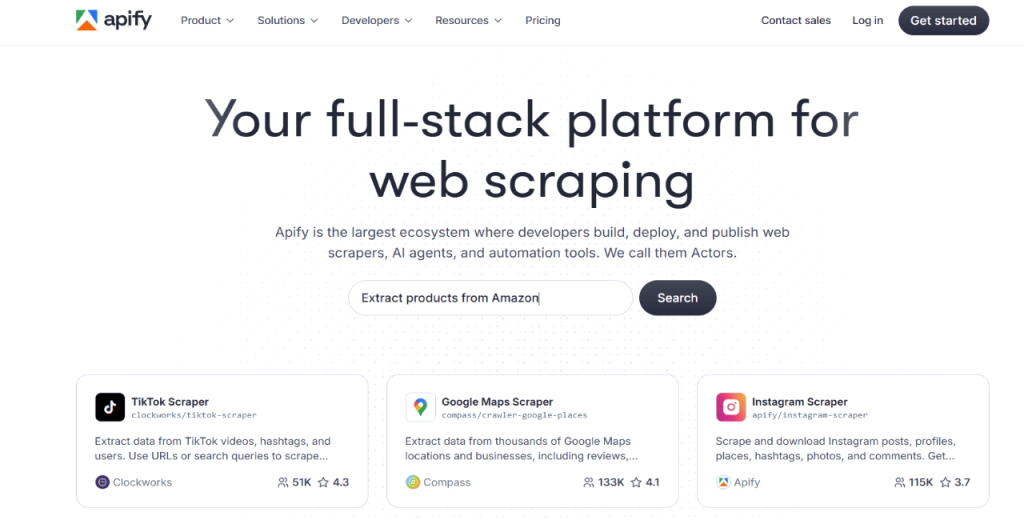
Apify is the best LinkedIn data enrichment tool if you’re looking for a tool that offers hands-on flexibility on how you scrape data.
Unlike most solutions, Apify is not a plug-and-play lookup tool. It’s a web scraping platform where you can build, customize, and run scrapers (called “Actors”) for LinkedIn.
Apify key features:
- Prebuilt LinkedIn actors → Allows you to use integrated scrapers to collect profile data, job titles, and company info.
- Custom workflow builder → Enables you to create scrapers for your data source using JavaScript or Python.
- API access → Lets you trigger scrapers programmatically and route enriched data to your endpoint.
- Scheduler → Allows you to run recurring data pulls on your preferred frequency.
- Integration stack → Lets you connect Apify to applications such as Zapier, Slack, Google Sheets, and Pinecone.
Apify pros:
- Large public Actor library
- Scales on demand
- Works with any tech stack
- Active dev community
Apify cons:
- Users report a steep learning curve
- LinkedIn scraping may need proxies
Apify pricing:
Apify offers a monthly subscription model combined with pay-as-you-go pricing as follows.
- Starter Plan = $39 per month. The plan includes $39 in credits for running your own Actors or using the Apify Store. Compute units cost $0.40 each.
- Scale Plan = $199 per month. The plan offers $199 in usage credits and priority support. Compute units cost $0.30 each.
- Business Plan = $999 per month. Designed for high-scale use, the plan boasts $999 in credits and an assigned account manager. Compute units cost $0.25 each.
Captain Data
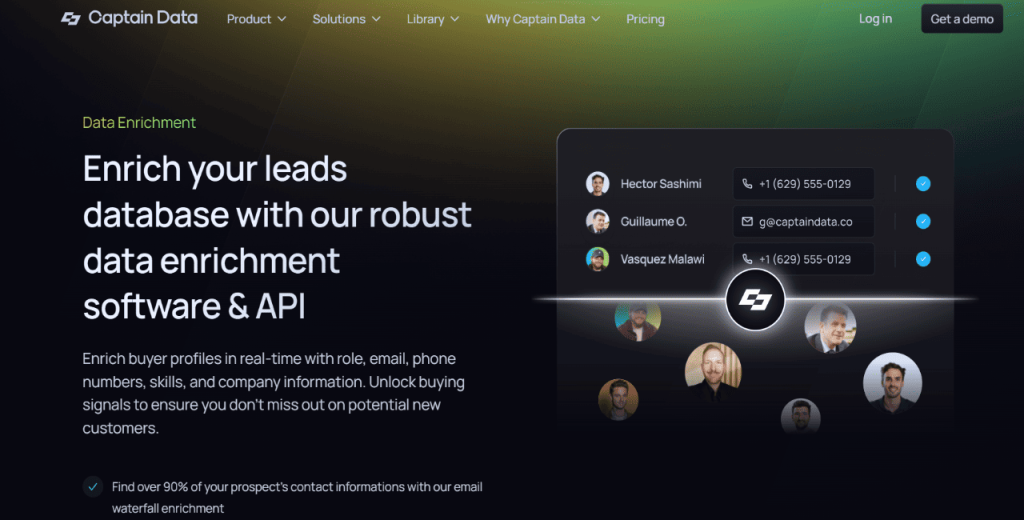
Captain Data is a good LinkedIn enrichment tool if you need real-time contact data synced into your CRM. It pulls verified emails, phone numbers, job titles, and buyer signals from LinkedIn and Sales Navigator.
The platform also connects directly to tools like HubSpot and Salesforce, which can help ensure your CRM data is clean and current.
Captain Data key features:
- Email enrichment → The feature uses multiple contact databases to find verified business emails. Captain Data promises up to 90% match rates thanks to this functionality.
- LinkedIn sync → Pulls live data from LinkedIn and Sales Navigator to update job titles, company names, and role changes automatically.
- Multi-source matching → Combines inputs from over 10 contact tools to build a complete profile for each lead, including phone numbers and company info.
- CRM auto-update → Sends enriched contact data into your CRM, such as HubSpot or Salesforce, without manual edits. It also keeps your records current.
- API access → Lets you connect Captain Data to your outreach or lead tools..
Captain Data pros:
- High match rates
- Native CRM sync
Captain Data cons:
- Not beginner-friendly
- Expensive
Captain Data pricing:
Captain Data offers three pricing tiers based on usage volume and feature access:
- POC plan = $99 per month. Designed for developers and operators. Includes 2,500 monthly credits, 25 identities, and access to Profiles, Signals, and Engagement APIs.
- Launch plan = $399 per month (billed annually). Geared toward builders managing enrichment at scale. Includes 10,000 monthly credits, 100 identities, and full API access.
- Enterprise plan = Starts at $30,000 per year. Built for high-scale data enrichment. Comes with 250,000 monthly credits, unlimited identities, full API access, and dedicated engineering support.
If you’ve made it this far, you now know how to download contacts from LinkedIn and the best contact data enrichment tools to use.
Let’s step away from LinkedIn …just a little bit.
Yes, you can import your LinkedIn contacts to other platforms.
You see, at times, you want to organize your contacts outside LinkedIn. It could be for backup, syncing with your address book, adding context in your sales system, and so on.
Below, we’ll show you how to import your LinkedIn contacts into other platforms. We’ll also tell you how to use the data and things to watch out for during import.
We’ll cover three platforms— Gmail, Outlook, and Apple Contacts.
How to import into Gmail Contacts
You can import your LinkedIn contacts into Gmail with just a few clicks as follows:
- Open your Gmail account.
- Click the Google Apps icon in the top-right corner and select “Contacts.”
- In the left panel, click “Import.“
- Choose the LinkedIn Connections.csv file you downloaded.
- Click Import to finish.
Gmail will now create new contacts based on the names and emails in the file.
How to import into Outlook
If you prefer using Outlook, follow these quick steps to get started:
- Open Outlook and go to File > Open & Export > Import/Export.
- Select “Import from another program or file” and click Next.
- Select “Comma Separated Values,“ then upload your Connections.csv file.
- Choose your Contacts folder as the destination.
- Click “Finish” to start the import.
Note: Outlook may prompt you to map fields, such as “First Name” and “Email Address,” to ensure they match.
How to import into Apple Contacts
Here’s how to add your LinkedIn contacts into Apple’s built-in Contacts app:
- Open the Contacts app on your Mac.
- Click File > Import from the top menu.
- Select your Connections.csv file.
- Review the fields and confirm the import.
Note — Apple Contacts may require you to save the file in .vcf (vCard) format first. You can do this using a CSV to vCard converter.
How to use LinkedIn data once imported
Once you’ve brought your LinkedIn contact data into your preferred platform, you can put it to work in several ways.
In email tools like Gmail or Outlook, you can use the imported names and email addresses to quickly compose and send personalized messages without switching between tabs.
You can also set up email groups or filters based on job titles or companies pulled from LinkedIn.
In your phone or address book, having these contacts synced means that their names will appear when people call or email you. It also makes it easier to manage work-related contacts separately from personal ones.
In a CRM, LinkedIn data gives you a head start on relationship building. You can assign tags, set reminders, track follow-ups, and see who’s in your pipeline.
And, even with partial data such as name, company, and profile URL, you can start segmenting your audience and planning outreach on the right footing.
…with that covered, let’s return to how to download LinkedIn contacts to Excel, and talk about one important detail you should always keep in mind.
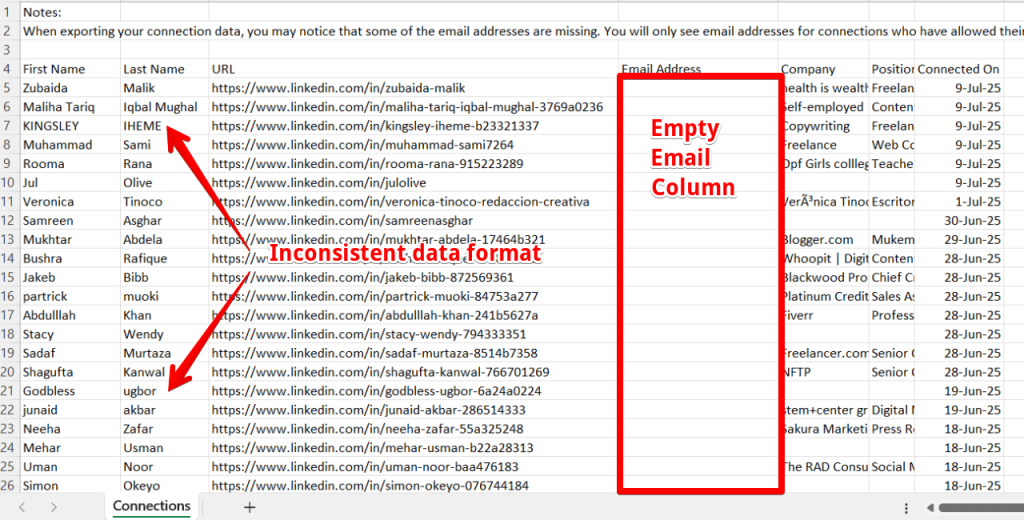
Although exporting LinkedIn contacts is straightforward once you learn the ropes, a few things can go wrong.
Below are some common problems you may run into and how to solve them.
| Problem |
Quick fix |
| No email from LinkedIn |
Check spam folder. Still nothing? Wait 2+ hours and re-request the archive. |
| Can’t open the ZIP file |
Re-download using a stable connection and different browser if needed. |
| Messy or outdated data |
Use a tool like Jason AI SDR to clean and enrich your file automatically. |
| CSV not displaying correctly |
Use “Text to Columns” in Excel and set delimiter to “Comma.” |
| Dates look like numbers (e.g. 44231) |
Format the column in Excel as “Date” to fix it. |
| Empty rows or emails |
Manually remove blanks, or filter them out before uploading to any platform. |
That said, downloading your LinkedIn contacts only solves one piece of the puzzle.
The real challenge lies in maximizing the data and maintaining an accurate and complete contact list over time.
And because LinkedIn doesn’t always include email addresses or job changes, it’s important to fill in the blanks using a good data enrichment tool.
With Jason AI SDR as part of your tech stack, you can be sure of always having outreach-ready lead sheets.
Besides, the platform pushes the envelope with personalized messages and automatic meeting scheduling. That way, you’ll manage your contacts more efficiently and, more importantly, convert them into sales.
Want to turn your CSV into a sales pipeline?
Book a Jason AI SDR demo and see how outbound prospecting looks when it’s automated.




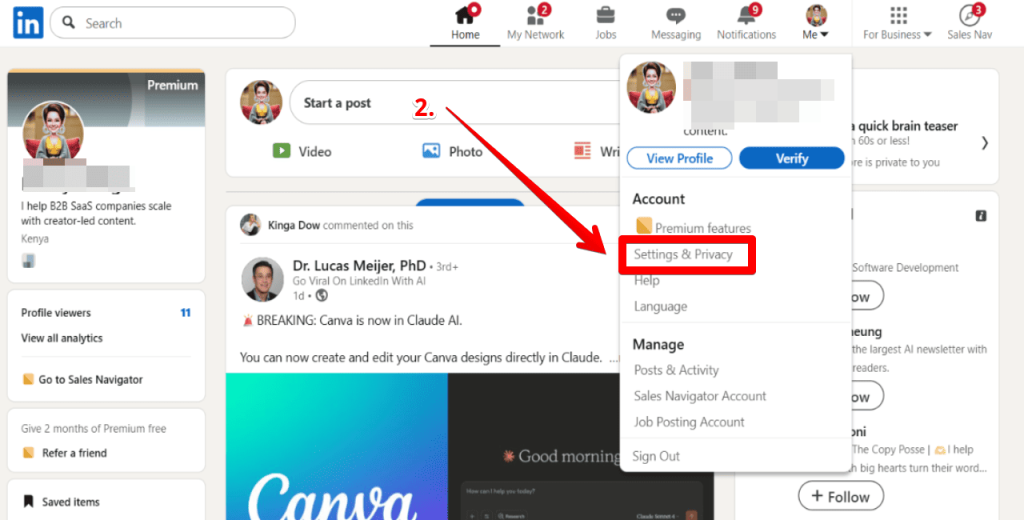
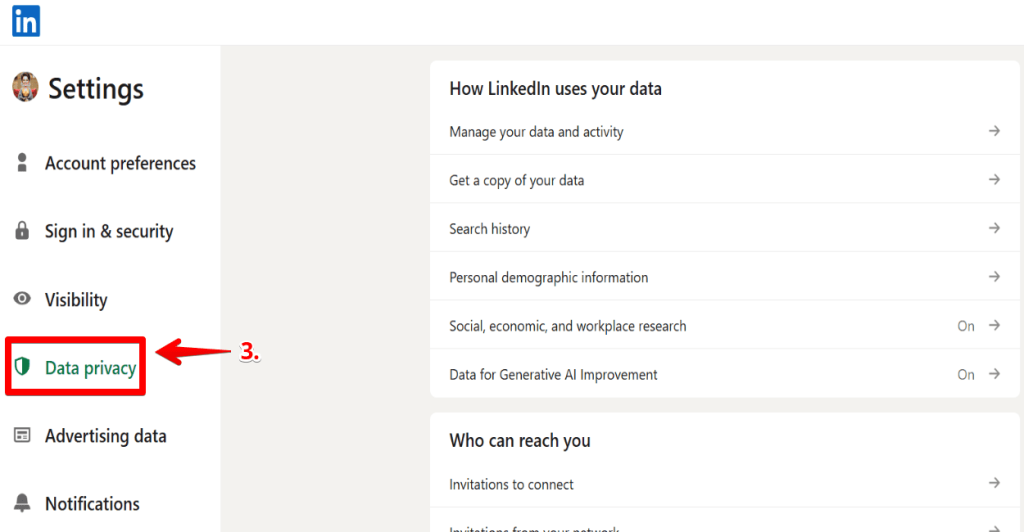

![The Ultimate Email Deliverability Toolset for 2026 [15+ Tools]](https://test.reply.io/wp-content/uploads/deliverability-300x158.jpg "The Ultimate Email Deliverability Toolset for 2026 [15+ Tools]")