Getting set up only takes a few minutes, but it lays the foundation for better results. Once everything’s set up, it’s time to take action. Let’s go over the next steps.
How do you build targeted lead lists?
Once your Sales Navigator account is set up, it’s time to put it to work and building the right lead lists is where the magic happens. Sales Navigator makes this part easy, as long as you know how to use the filters well.
Start by heading to the Lead Search page.

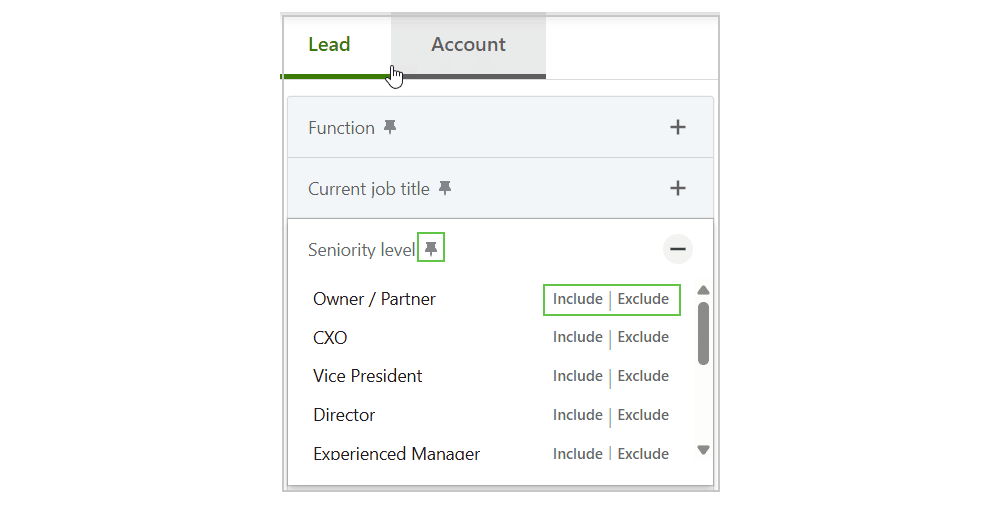
From there, use the advanced filters to narrow things down. You can search by location, job title, company size, industry, seniority level, years in the current role, or past company experience.
Want to go deeper? Use a Boolean search in the keyword field. This lets you combine terms with AND, OR, and NOT. For example:
- “marketing director” AND SaaS
- “VP of Sales” NOT recruiter
It’s especially useful when targeting niche roles or mixed job titles across industries.
Need help with filters? Don’t worry. Here’s a cheat sheet with simple examples to help you build smarter lead lists, faster.
| Filter type |
Example |
When to use |
| Title |
“Head of Marketing”, “VP of Sales” |
Find decision-makers |
| Company headcount |
51–200, 201–500 |
Target mid-sized businesses |
| Geography |
United States, Germany |
Focus by region |
| Industry |
SaaS, Healthcare |
Narrow by sector |
| Seniority |
CXO, Director |
Prioritize leadership roles |
| Keywords (Boolean) |
“marketing director” AND SaaS |
Refine results using logic |
Once you’ve got a solid list, save those leads. Sales Navigator lets you organize both people and companies into lists. You might create separate ones for industries, regions, or campaigns. These lists make it easy to track progress and follow up at the right time.
Also, you can click “View similar” on a great lead’s profile. Sales Navigator will show you others with similar roles and experience. It’s a quick way to expand your list with quality contacts.
With the right filters, Boolean know-how, and saved lists, you’re no longer just searching.
You’re building a system.
How do you use the homepage and alerts?
When you’ve built your lead lists, your Sales Navigator homepage becomes your command center. It’s more than just a dashboard = it’s where you spot real-time signals and chances to engage.
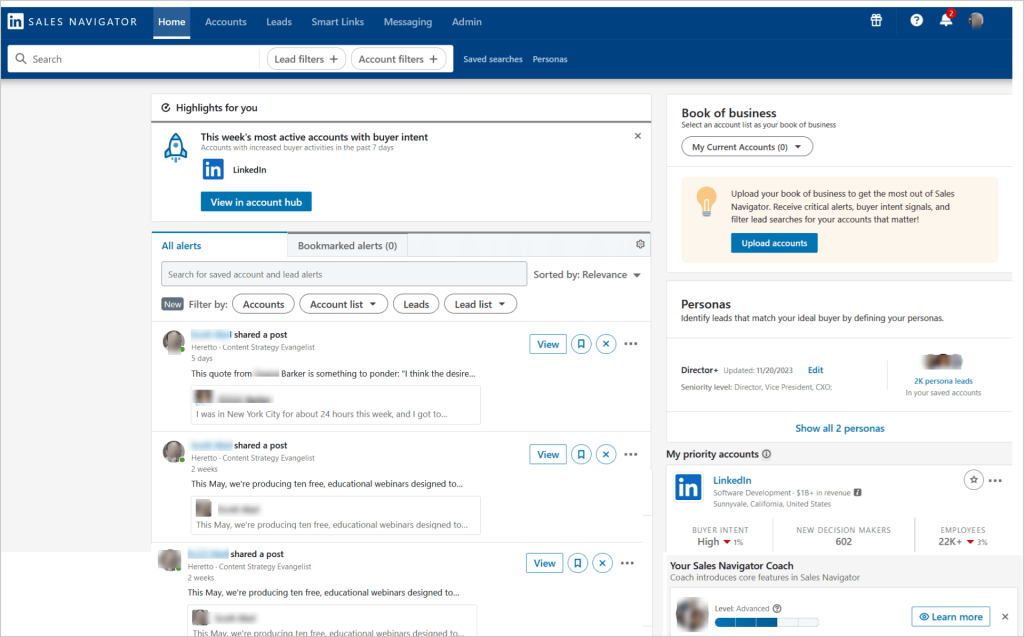
The homepage gives you:
- Job changes or promotions → Congratulate them and offer support in their new role
- New content shared → Comment or message with a question to spark a real convo
- Company funding or growth news → Reference it as a reason your solution might help now
- Hiring announcements → Suggest a helpful resource or offer to connect them with talent
- Leadership changes → Great moment to introduce yourself as a fresh voice
These updates are perfect conversation starters and help you reach out with perfect timing.
To make the most of this feed, customize it. Remove companies or leads you no longer care about. Prioritize your top accounts. Hide irrelevant updates. Over time, Sales Navigator will learn what matters to you and show more of it.
How do you use lead and account pages effectively?
Now, when you’ve found a potential lead, don’t just hit “connect” and move on.
Take a few minutes to dig into their lead page: this is where you’ll find the information that makes your outreach stand out.
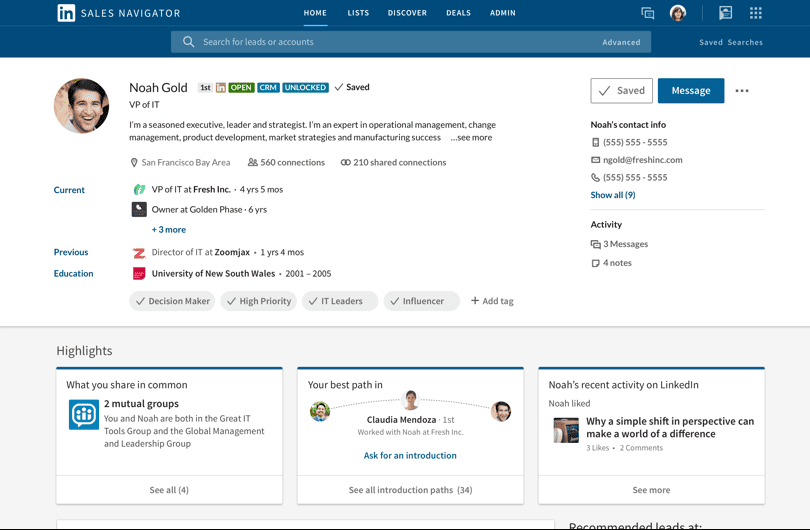
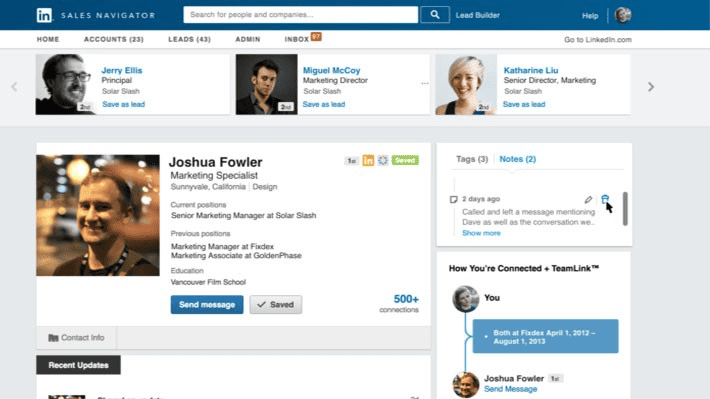
Each lead page gives you a snapshot of the person’s professional world. You’ll see their job title, company, and location, how long they’ve been in their current role, and where they worked before, shared connections, recent posts, and activity.
Use this info to spot conversation starters. Maybe they’ve recently shared an article you can reference, or just got promoted = great reasons to reach out with something more personal.
Now switch over to the account page. This is where you gather company-level insights. It helps you understand the broader picture: how the business is growing, what they care about, and who else might be worth contacting.
Key things to look for:
- Company size, industry, and recent news
- Hiring trends or department growth (a sign they may need your solution)
- Other leads at the same company you can add to your list
This extra research takes just a few clicks but makes your message way more relevant and way more likely to get a response.
How do you engage with prospects the right way?
Let’s say you’ve found a great potential client.
The next step is to start a conversation that actually gets a response. In 2026, attention is short and inboxes are full, so your message needs to be both relevant and respectful of their time.
To make sure your message doesn’t get ignored, keep these best practices in mind:
- Keep it short (3–4 sentences is plenty)
- Make it personal – reference something real about them
- Lead with value, not your pitch
- End with a friendly, low-pressure CTA (like “worth a quick chat?”)
- Follow up once if you don’t hear back (people get busy – it’s not personal)
There are two main approaches:
- Soft outreach: Ask a thoughtful question or comment on something they’ve done. It’s great for warming up cold leads.
- Direct outreach: Clearly state why you’re reaching out, what you offer, and how it helps. Just keep it friendly, not pushy.
Using shared connections or mutual interests makes a big difference. Mentioning a mutual contact or being part of the same LinkedIn group adds instant credibility and helps your message stand out.
And when it comes to follow-ups, space them out. Don’t chase – check in with a helpful update or new insight. Keep the tone light and positive. You’re building a relationship, not closing a deal on the first message.





![The Ultimate Email Deliverability Toolset for 2026 [15+ Tools]](https://test.reply.io/wp-content/uploads/deliverability-300x158.jpg "The Ultimate Email Deliverability Toolset for 2026 [15+ Tools]")