Tracking performance is crucial to understand whether your LinkedIn and HubSpot integration is delivering the results you want.
Monitoring this data allows you to make informed changes geared toward improving your campaign’s ROI.
To track results, here’s what you need to do.
Know where to view LinkedIn ad data in HubSpot
You can’t determine your campaign’s performance if you don’t know where to look. Luckily, you can quickly view key insights as follows:
#1 Go to your HubSpot dashboard and navigate to Marketing → Ads.
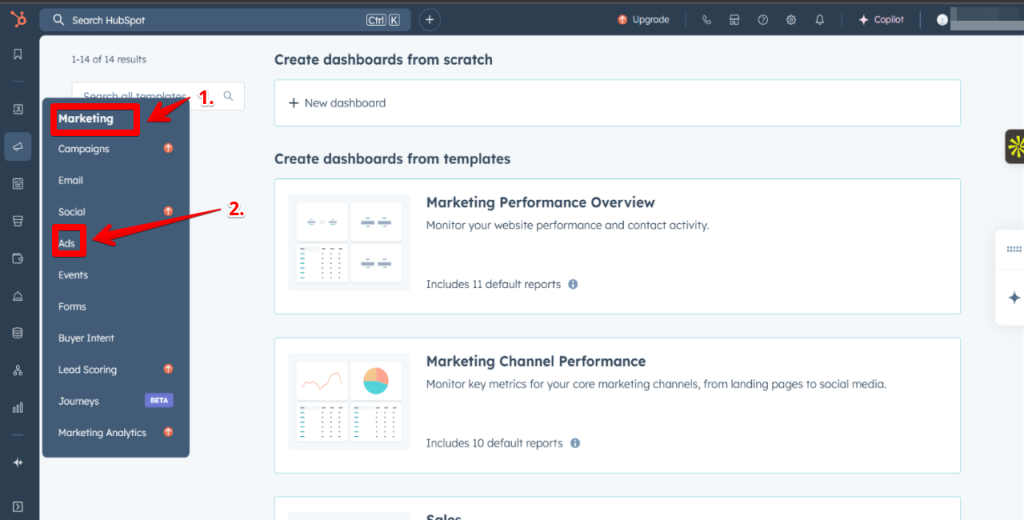
#2 Select LinkedIn from the connected ad accounts list.
#3 Here, you can review metrics such as clicks, impressions, conversions, and ad spend at a glance.
Set up dashboards and reports
Dashboards give you a bird’s-eye view of all your performance data, making it easier to spot trends, compare campaigns, and decide where to focus your budget.
Here’s how to set one up:
#1 In HubSpot, click Reporting → Dashboards.
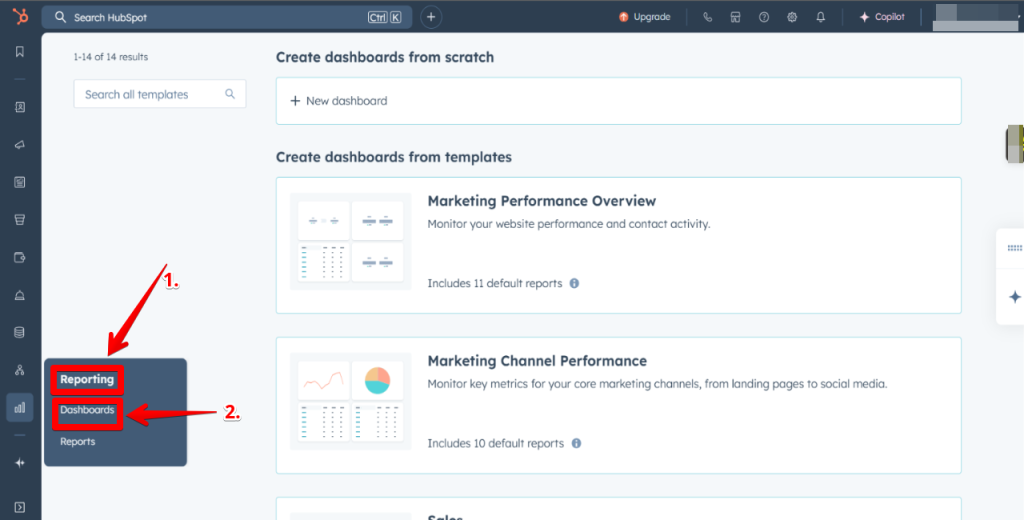
#2 Select Create Dashboard and either choose a LinkedIn-specific template or build one from scratch.
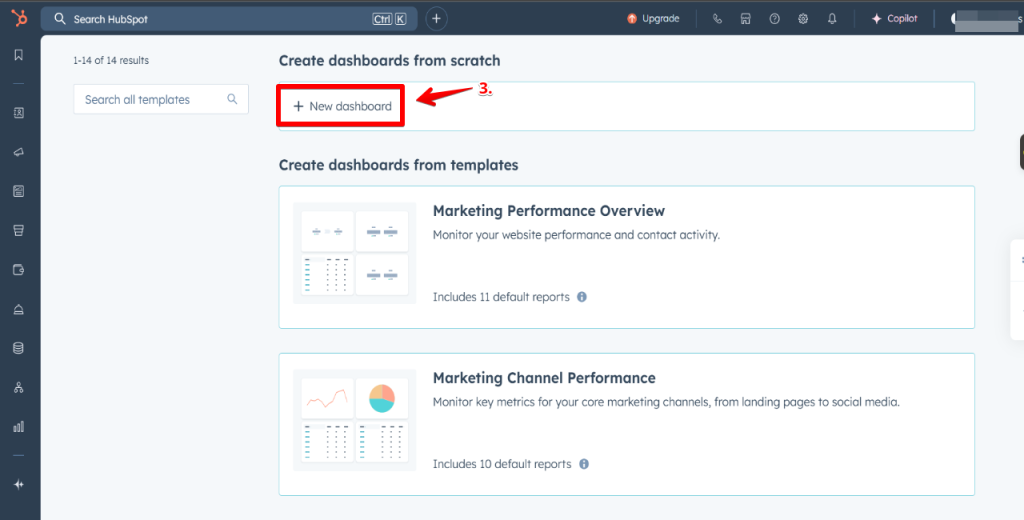
#3 Add reports that show ad performance, lead conversions, and ROI.
#4 Save and share the dashboard with your team so everyone can monitor results in real time.
Use UTM parameters for custom campaign tracking
UTM tags allow you to pinpoint exactly which campaigns or creatives are driving traffic and leads. To set them up:
- Add UTM parameters to your LinkedIn ad links before launching a campaign.
- Include details such as campaign name, ad creative, and audience type.
- After the campaign runs, check Traffic Analytics in HubSpot to see which ads produced the best results.
What are common issues, and how to fix them?
Even with the LinkedIn HubSpot integration set up correctly, you may run into problems that affect performance or stop data from syncing.
And, knowing how to identify and fix these issues will save time and keep your campaigns running smoothly.
Let’s now go over some common integration glitches and how to resolve them.
Integration not showing in HubSpot
When the integration isn’t showing in HubSpot, it means the two platforms aren’t currently linked. Possible causes could be that the connection was never completed, the integration was accidentally removed, or the authorization expired.
To fix it:
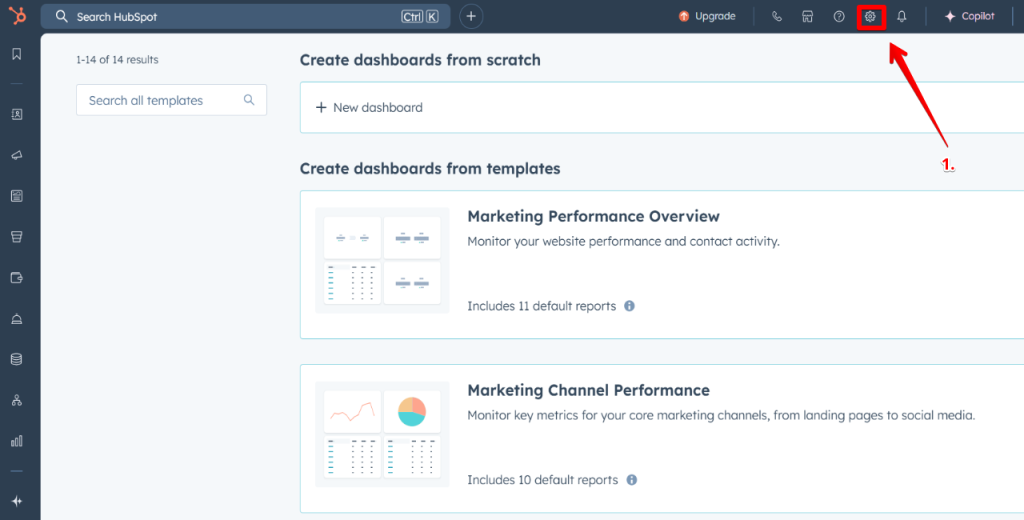
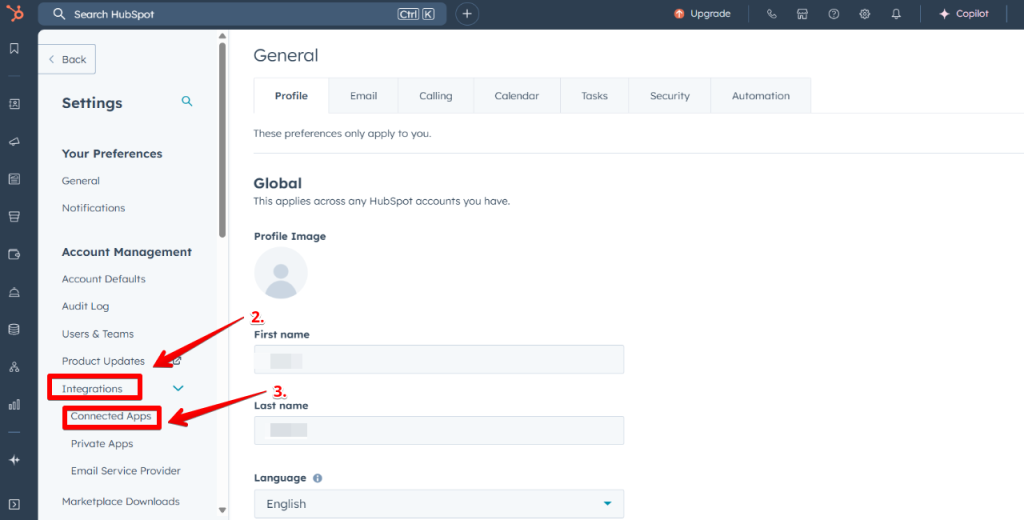
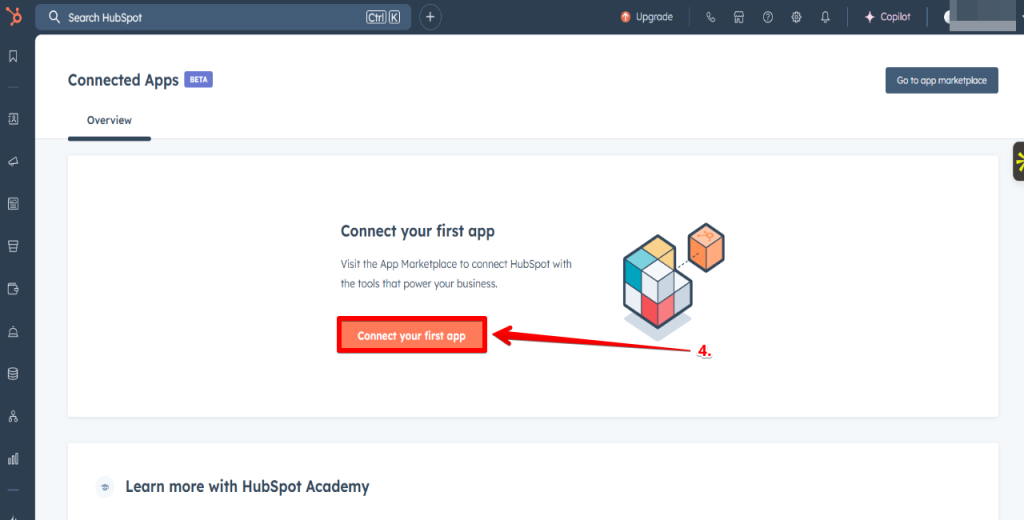
- Go to Settings → Integrations → Connected Apps in HubSpot. (see screenshots above)
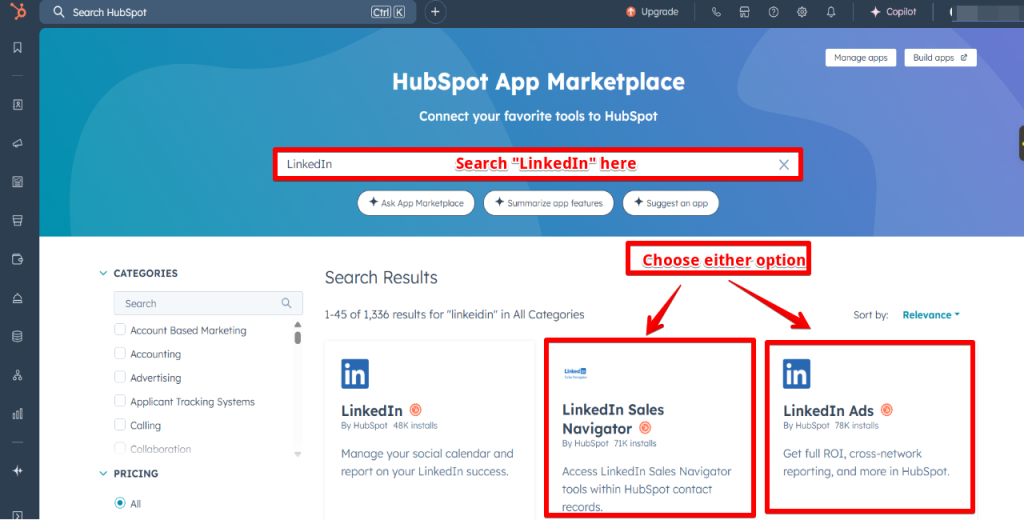
- If LinkedIn is missing, click Connect an app, search for “LinkedIn,” and reconnect it.
- Make sure you’re using an account with admin permissions on both platforms before authorizing.
Leads not syncing properly
If leads aren’t syncing, HubSpot isn’t receiving data from your LinkedIn Lead Gen Forms. The issue happens when the form isn’t connected to the right ad campaign, and the fields aren’t mapped correctly in HubSpot. Or, the form is inactive.
To fix it:
- Check that the LinkedIn Lead Gen Form is active and linked to the correct ad campaign in Campaign Manager.
- In HubSpot, go to Marketing → Ads → LinkedIn and confirm that each form field maps to the right HubSpot property.
- If syncing fails, disconnect and reconnect the integration to refresh the connection.
Permission errors or expired tokens
If you see permission errors, HubSpot can’t access your LinkedIn account. The glitch occurs when admin rights have been removed or the connection token has expired.
To fix it:
- In LinkedIn Campaign Manager, confirm you still have admin access to the ad account or company page.
- In HubSpot, go to the LinkedIn integration settings and click Reconnect to refresh the token.
Using HubSpot’s troubleshooting tools
If problems persist, HubSpot’s Ads Tool can help you find the cause. It is also important to note that warnings often appear when syncing stops or data is incomplete.
To fix it:
- Go to Marketing → Ads → LinkedIn in HubSpot.
- Look for a warning icon next to the affected campaign and click it.
- Follow the recommended steps provided in the alert to resolve the issue.
How can you get more out of the integration?
Once HubSpot LinkedIn ads integration is up and running, you can fine-tune it to generate better leads, improve targeting, and increase conversions.
Here are practical ways to max out the integration’s value:
Optimize LinkedIn Lead Gen Forms
Well-designed forms capture more leads. You, therefore, want to ensure your forms are as easy to complete as possible.
Some strategies you can use to optimize your LinkedIn Gen forms include:
- Keep your forms short. Only ask for the information you need.
- Use clear, benefit-driven headlines that explain what the lead will get.
- Test different call-to-action texts to see which drives higher submissions.
- Pre-fill fields with LinkedIn profile data to reduce friction for the user.
- Use multiple-choice questions instead of open text fields to speed up completion.
- Add a strong incentive, such as a free guide, webinar access, or discount, to increase form completion rates.
- Match the form content to the ad promise so users get exactly what they expected when they click.
Use smart content in HubSpot based on LinkedIn ads
Your content in HubSpot must be well-thought-out.
Ideally, you want to match what visitors see on your website or landing pages to the LinkedIn ad they clicked. That way, you can create a consistent experience and improve your chances of converting them into leads.
Here are some tips to get your juices flowing:
- Tailor headlines and offers to match the specific LinkedIn ad message.
- Adjust calls to action based on the buyer’s stage or industry your ad targeted.
- Display relevant case studies, testimonials, or product features that align with the prospect’s industry or role.
- Adjust forms to request information that aligns with the ad’s intent.
Leverage LinkedIn insights for lead scoring
LinkedIn activity data can help you prioritize the right leads for follow-up. By adding these engagement signals into your HubSpot lead scoring model, you can focus sales efforts on the prospects most likely to convert.
Examples of insights to factor in:
- Ad clicks or video views from targeted decision-makers.
- Multiple form submissions or repeated engagement with your campaigns.
- Profile views or interactions with your company’s LinkedIn page.
A/B test LinkedIn ad campaigns within HubSpot
Testing different ad variations helps you understand which creative, copy, or targeting performs best.
Furthermore, when you run these tests in coordination with HubSpot, you can corroborate ad performance to lead quality and conversions.
Some variables you can consider testing include:
- Headlines: Compare short, direct headlines vs. longer, benefit-focused ones.
- Ad copy: Test emotional appeals against fact-driven descriptions.
- Creative: Compare static images, carousels, and short videos.
- Calls to action: Try variations like “Book a Demo” vs. “Learn More.”
- Targeting: Experiment with different audience segments to see which responds best.
Quick note: If you’re using HubSpot and want to turn your expertise into income, check out our HubSpot Affiliate Program review — it’s surprisingly profitable.
…moving on.
What are some alternatives or add-ons?
Sometimes the native LinkedIn HubSpot integration may not cover every workflow or have the features you need.
However, you can use third-party tools to bridge those gaps by adding functions like lead enrichment, automated LinkedIn actions, or custom data routing.
Below are some of the top tools you can use to supercharge your integration.
But before we look at what each tool can do, here’s a quick comparison table.
| Tool |
Best for (use case) |
Key features |
Starting price |
| Reply.io |
Automating large‑scale multi‑touch outreach |
Sequences via email, LinkedIn, SMS, calls; unified inbox; deliverability tools; HubSpot sync |
$49/month Email Volume plan (1,000 contacts) |
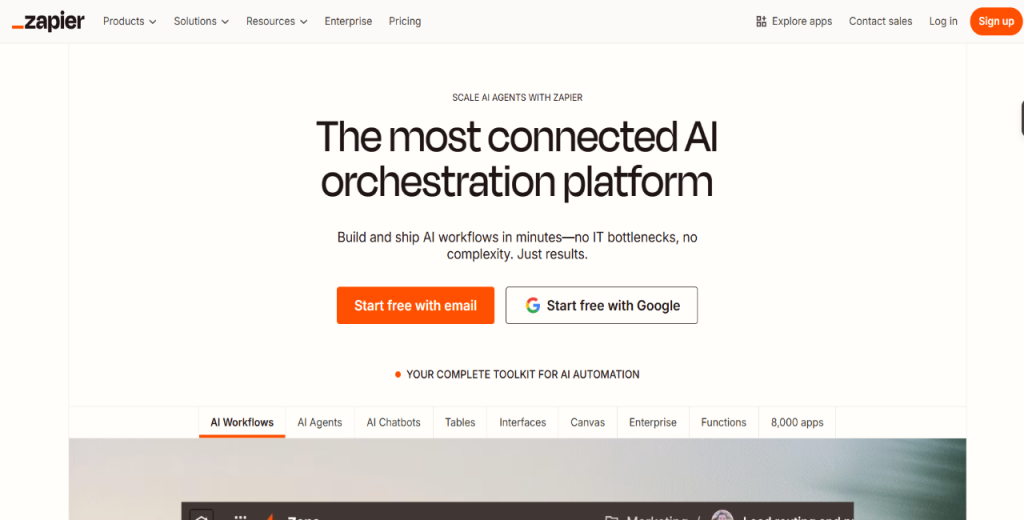
| Zapier |
Custom automation workflows |
Trigger‐action rules: sync contacts, ad audiences, HubSpot alerts, LinkedIn updates |
$19.99/month basic plan |
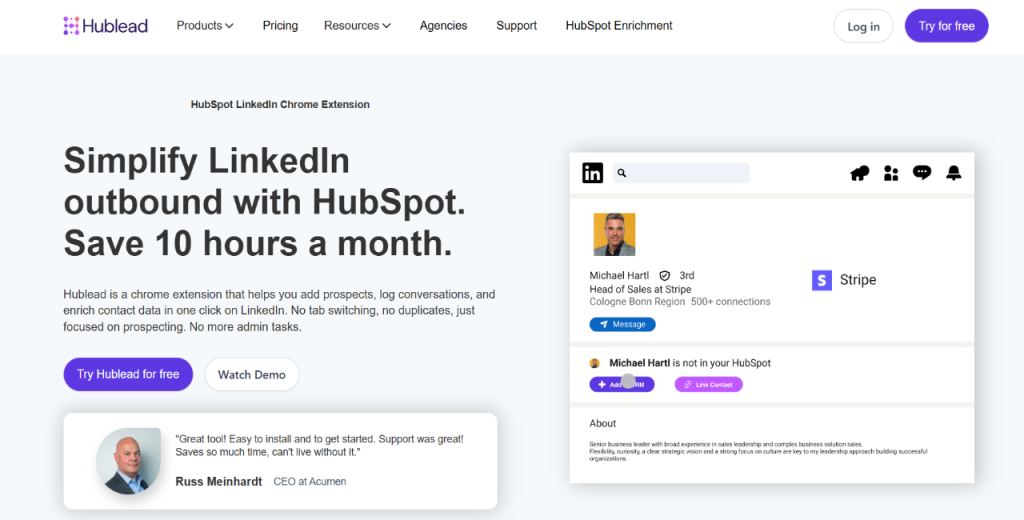
| HubLead / Surfe |
Importing & syncing LinkedIn contacts/messages |
One-click import, message logging, engagement tracking, CRM view |
$29–40/month/user (HubLead ~$40; Surfe ~$29) |
| PhantomBuster |
Automated scraping/enrichment from LinkedIn |
Extracts contacts, statuses, job changes; flexible workflows |
From ~$56/month |
| LinkedIn Sales Navigator (HubSpot integration) |
In-CRM LinkedIn insights & outreach |
View shared connections, send InMails, icebreakers, recommended leads, account intelligence |
Requires HubSpot Sales Hub Professional+ and LinkedIn Sales Navigator Advanced Plus |
| LinkMatch |
Syncing LinkedIn contacts with HubSpot CRM |
Auto-syncing connection data into CRM, keep your records current |
Not specified |
Let’s talk details about these, but before we dive too deep…




![The Ultimate Email Deliverability Toolset for 2026 [15+ Tools]](https://test.reply.io/wp-content/uploads/deliverability-300x158.jpg "The Ultimate Email Deliverability Toolset for 2026 [15+ Tools]")