Why do this? You want to group everyone into clear persona buckets, so you can:
- Focus your outreach on personas that match your ICP
- Personalize messaging by persona
- Easily cut out irrelevant contacts
Step 3.2: Filter out unknowns
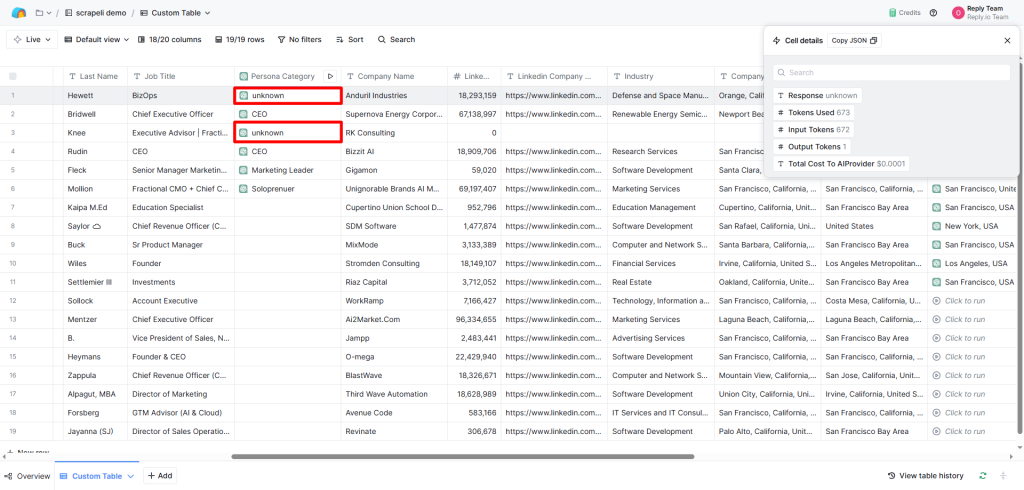
When you run the prompt, some job titles will come back as “unknown.”
That’s on purpose, because if you can’t confidently categorize a prospect into a useful persona, they’re probably not worth pursuing.
In this step:
- Filter out all contacts where Persona = “unknown”
- This can shrink your list by another 2–3x; again, this is good! You only want quality prospects.]
Step 3.3: Clean and standardize city & country fields
Before you move into outreach, it’s worth taking one more quick step: clean up your City and Country fields.
Why? Because scraped LinkedIn locations are messy:
- Sometimes they include regions or suburbs
- Sometimes the country is missing
- Sometimes the city is inconsistent
When you clean this up, you’ll:
✅ Personalize your outreach better (e.g., “I noticed you’re based in {{City}}…”)
✅ Avoid weird or broken location lines in your emails
✅ Have more accurate geo-segmentation in your list
How to do it:
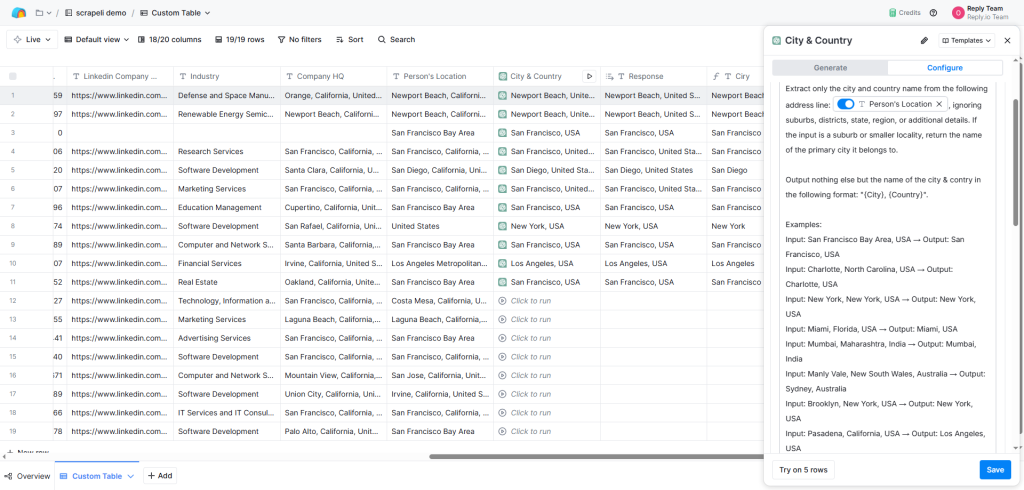
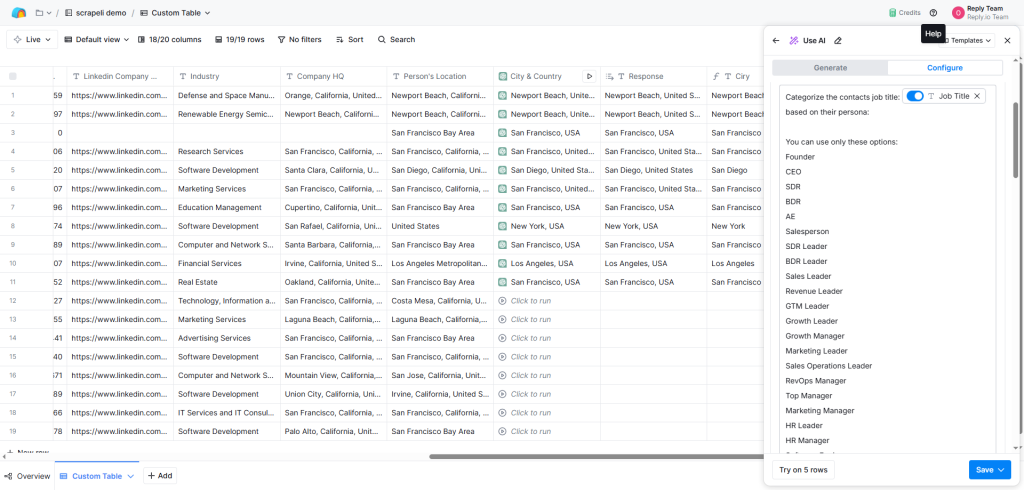
In Clay, add a new enrichment column using this exact prompt:
Prompt:
Extract only the city and country name from the following address line: {{Location}}, ignoring suburbs, districts, state, region, or additional details. If the input is a suburb or smaller locality, return the name of the primary city it belongs to.
Output nothing else but the name of the city & country in the following format: {City}, {Country}.
Examples:
- San Francisco Bay Area, USA → San Francisco, USA
- Charlotte, North Carolina, USA → Charlotte, USA
- Mumbai, Maharashtra, India → Mumbai, India
- Brooklyn, New York, USA → New York, USA
- France → Paris, France
- Not Found, Germany → Berlin, Germany
Additional Instructions:
- Output nothing else but the City & Country
- If the location line is Not Found, use: New York, USA
- If only a country is given, return the capital city + country
- If only a city is given, always add the country
Why this helps? Now your City, Country column is standardized, ready for:
✅ Personalization in outreach messages
✅ Geo-filtering if needed (US-only campaign? EMEA-only? Now it’s easy)
✅ Cleaner reports and tracking
Quick tip: If you want to use just the City part (without the country) for message personalization, you can easily ask Clay to split this field at the comma (use the Formula field), and keep only the first part (city).
This is a great way to add lines like: “I noticed you’re based in {{City}}…” And the same for the {{Country}}.
Once this step is done, you’re ready to build your outreach sequence 🚀.
Step 3.4: Additional cleanup
Now, run a few more filters in Clay to further narrow the list:
- Company location (target markets only)
- Company size
- Industry
At this point, you’ll have a super-clean, highly targeted list of competitors’ followers who:
✅ Fit your ICP
✅ Have standardized personas
✅ Are ready for the next step = finding emails and outreach
Tip: It’s normal for your list to shrink by 2–3x at this stage. That’s a good thing! Now you have a focused, high-quality list.
Step 4: Find their emails
Now that you’ve got a clean, high-quality list of prospects, it’s time to find their emails.
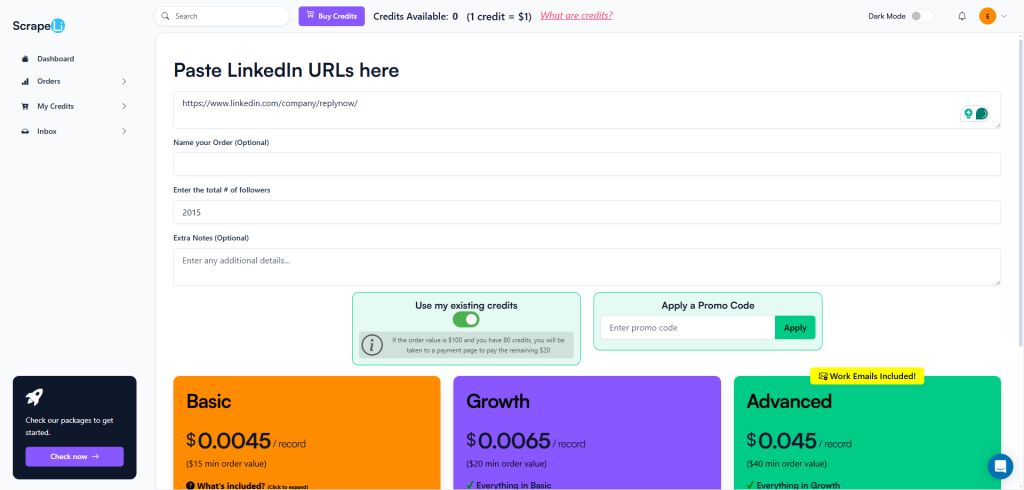
Since you already have LinkedIn Profile URLs (from the scrapeli.io export), this part is simple; no need to jump between tools.
Here’s how:
- Stay inside Clay; no need to export.
- Add a new column for enrichment using Findymail (Clay has a native integration).
- Use the LinkedIn Profile URL field to trigger the Findymail enrichment. This way you’ll find verified work emails, automatically populated into your table.
That’s it!
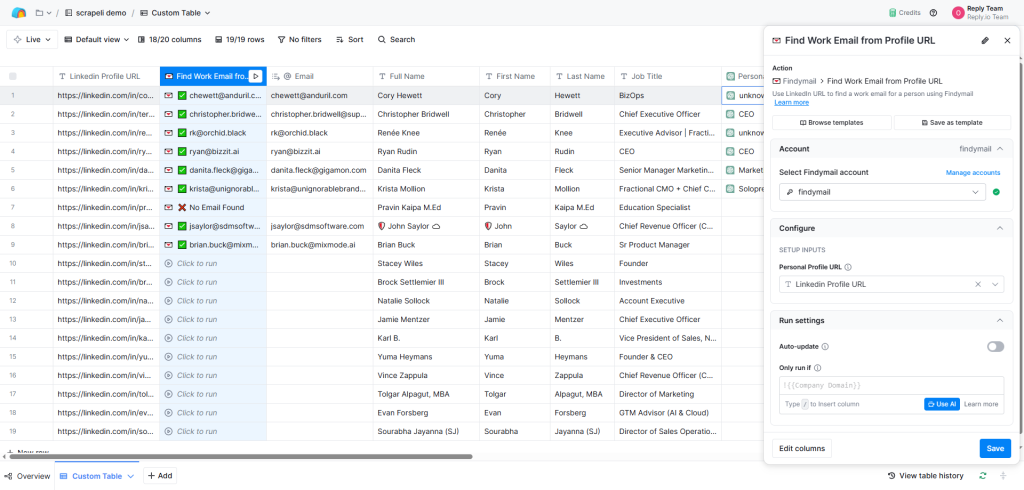
No manual steps, no copying LinkedIn URLs back and forth.
Why this works so well:
✅ The list already fits your ICP
✅ Job titles are standardized
✅ You’re finding emails for exactly the right people
✅ You can use one tool (Clay) to manage the entire process. It’s fast, scalable, and easy to repeat
But what if Findymail doesn’t find an email?
No problem! Don’t throw those contacts away. You can still reach them!
Here’s what to do:
- If an email is found → Include the contact in your full multichannel outreach sequence (email + LinkedIn).
- If no email is found → Tag those contacts as “LinkedIn-only” and include them in LinkedIn outreach steps only (connection requests, DMs, comments).
This way:
✅ You still make use of the entire scraped list
✅ No good contacts are wasted
✅ You can run true multichannel campaigns (email + LinkedIn), not just email-only
Step 5: Build your outreach sequence
Now you’re ready to start your outreach.
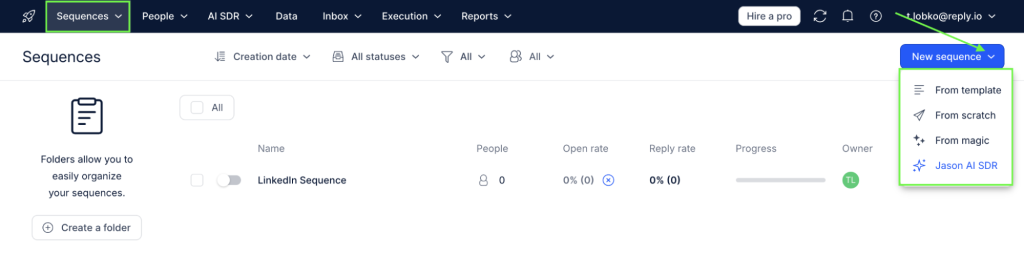
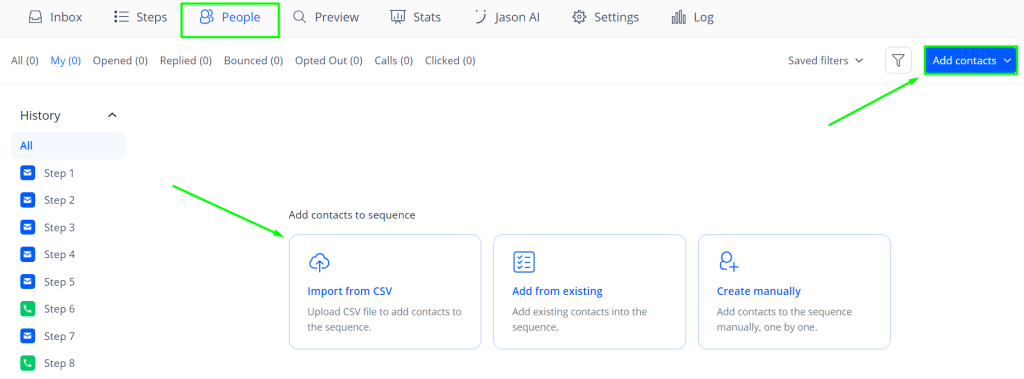
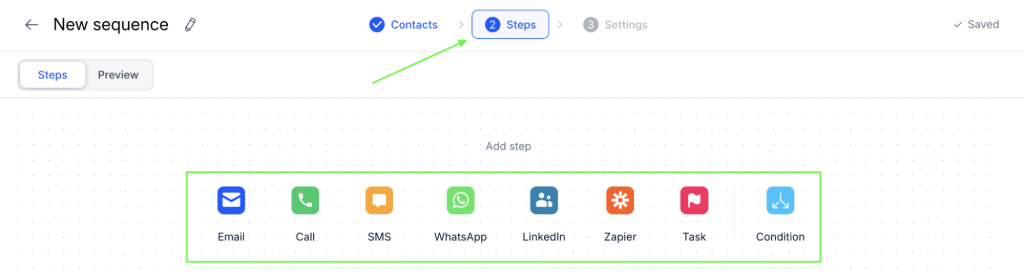
Import your final list into a multichannel tool like Reply.
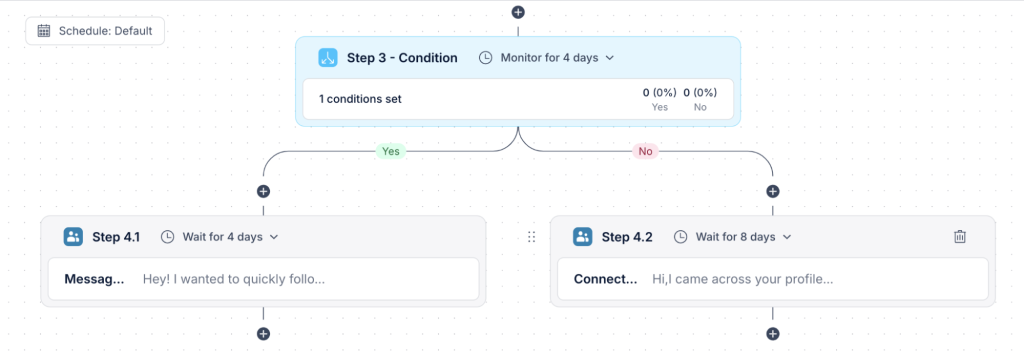
You’ll want to set up sequences that hit multiple channels:
- LinkedIn messages
- Cold emails
- Follow-up touches
Finding the right people is only half the battle. Now let’s make sure your messages actually get responses.
Here’s how to write outreach that works.



![The Ultimate Email Deliverability Toolset for 2026 [15+ Tools]](https://test.reply.io/wp-content/uploads/deliverability-300x158.jpg "The Ultimate Email Deliverability Toolset for 2026 [15+ Tools]")