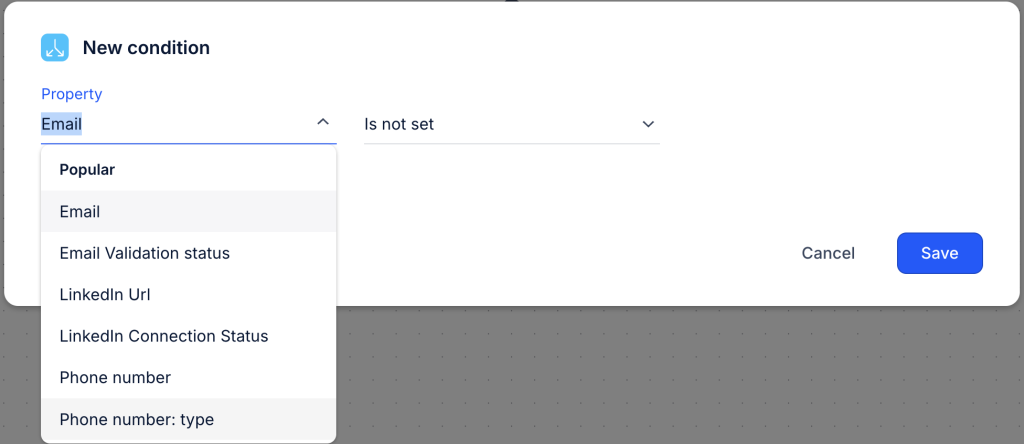
How does the system know when the condition is met?
This part blew my mind when I first saw it in action.
I always wondered: “Okay, cool, I’ve set a condition… but when does it actually trigger? How does it know?”
Turns out, the system uses something called “Monitor for.”
Think of it like setting a gentle alarm.
Not loud. Not pushy.
Just quietly checking in (over and over and over…) until something happens (or doesn’t). Here’s how it works:
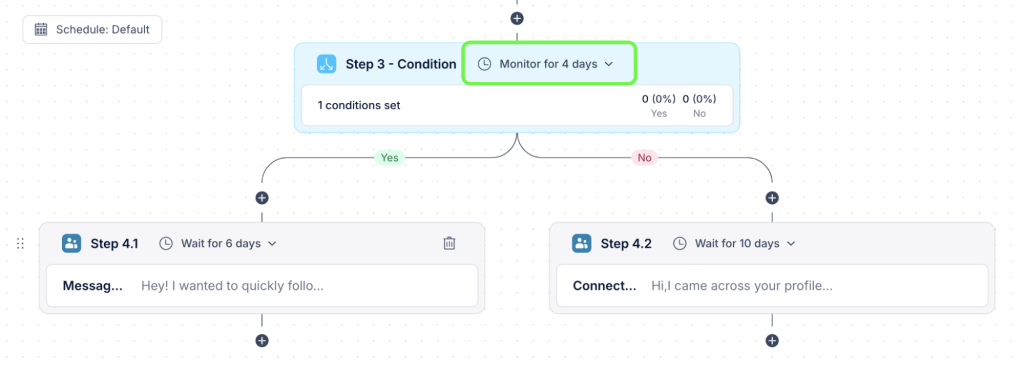
When you set a condition, you also choose how long you want to monitor for that action.
Let’s say you’re waiting to see if someone opens your email.
You set it to “monitor for 4 days.”
Behind the scenes, Reply checks every 10 minutes to see if that person opened the email.
No rush. No pressure. Just quiet, consistent monitoring.
And then, the moment they open it = they immediately move to the next step on the “Yes” path.
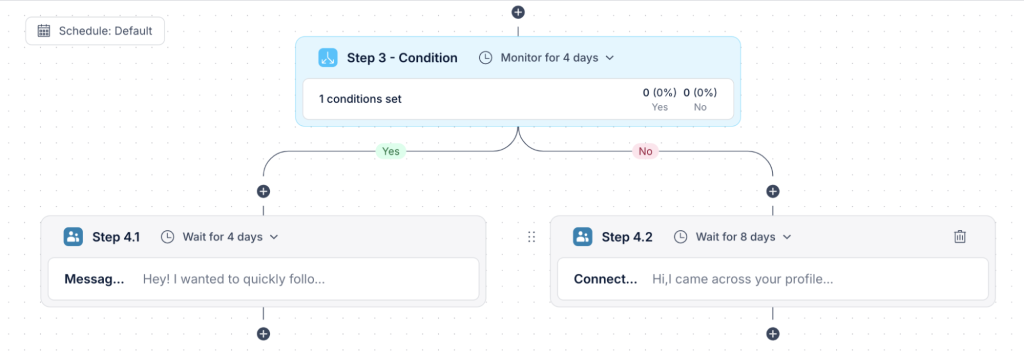
In one of my outreach sequences, I send a cold email, then monitor for an open:
- Step 2: Send cold email
- Step 3: Condition → “Email opened?”
- Monitor for 3 days
- If opened → Step 3.1 → Send personalized follow-up
- If not opened after 3 days → Step 3.2 → Try LinkedIn instead
One time, a lead opened my email at 2AM on the second night.
The system noticed it, and by morning, they were already in the personalized follow-up path.
No delay. No manual checking.
Just smooth, automatic progress, while I was asleep.
Not sure how long to monitor for? Here’s a quick guide based on what’s worked best in my own sequences.
| Condition type |
Suggested monitor time |
Why it works |
| Email opened |
2–3 days |
Gives time to open without dragging out the sequence |
| Email replied |
1–2 days |
If they reply, you want to respond fast |
| LinkedIn connected |
4–5 days |
People don’t always accept immediately |
| Has valid email |
Immediate (no monitor) |
Use this just to check before email steps |
| Contact status is active |
Immediate (no monitor) |
Typically used as a filter before launch |
The last question you might have is, “Why “Monitor for” matters?” Easy!
Without it, you’d have to guess when to move people forward.
Or worse: follow up too soon and seem pushy.
But with “Monitor for,” you get to:
- Give people time to engage
- Let the system watch for signals
- Move them forward the moment something happens
It’s the difference between static automation… and responsive outreach.
What’s the difference between ‘monitor for’ and ‘wait for’?
This one tripped me up at first. Both sound like “waiting,” right?
But they behave very differently inside your sequence.
Once I understood the difference, my timing got way more intentional, and my replies went up.
Let me break it down for you.
Simple analogy time = think of it like this:
- Monitor for = “Watch and react if something happens.”
- Wait for = “Just pause for a bit, no matter what.”
They’re both delays. But only one is actively paying attention.
Let me share with you a real-world example. Let’s say you just sent a cold email. Now you want to:
- Give the person 3 days to open it
- If they open it, follow up right away
- If they don’t, try something else
This is a perfect case for Monitor for.
You tell Reply: “Hey, keep an eye out for 3 days. If they open it, move them to Step 4.1. If not, send Step 4.2 on day 4.”
The system checks every 10 minutes. The moment they open it = they move forward.
Now let’s talk about Wait for. This one’s simpler. No checking. No reacting.
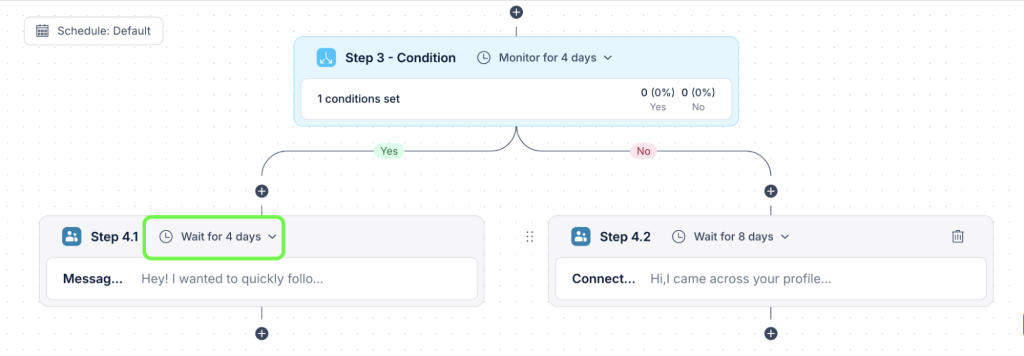
It just… waits.
Imagine you want to give a contact a breather before following up, no matter if they’ve replied or not.
You might say: “Wait 2 days, then send the next email.”
This is just a buffer. It doesn’t care what the contact does. It just gives space between steps.
Here’s a quick visual comparison:
| Feature |
Monitor for |
Wait for |
| Checks for action? |
✅ Yes – checks every 10 minutes |
❌ No – just pauses |
| Reacts early? |
✅ Moves forward the moment it happens |
❌ Always waits the full time |
| Best for… |
Conditional steps (e.g., “Did they open?”) |
Natural delays or cooldowns |
When I use each (and why):
- I use “Monitor for” when I care if someone takes action. Like opens an email, connects on LinkedIn, replies to a message.
- I use “Wait for” when I just want to pause. Maybe after a reply, or between touches on different channels.
I always use “Wait for” between a LinkedIn touch and an email. It gives just enough room to feel human, not robotic.
Now that you know how it works, what if you make a mistake? Don’t worry, I’ve been there. Here’s how to clean things up safely.
How do I clean things up if I mess up?
I’ve deleted the wrong branch more times than I’d like to admit.
One time, I thought I was just trimming a little “No reply” path…
Next thing I knew? I’d accidentally deleted the entire condition and everything beneath it.
Poof.
Gone.
Like I’d axed the whole tree because I didn’t like one leaf.
So yeah…deleting steps in conditional sequences is powerful.
But with great power comes great respo…potential to panic.
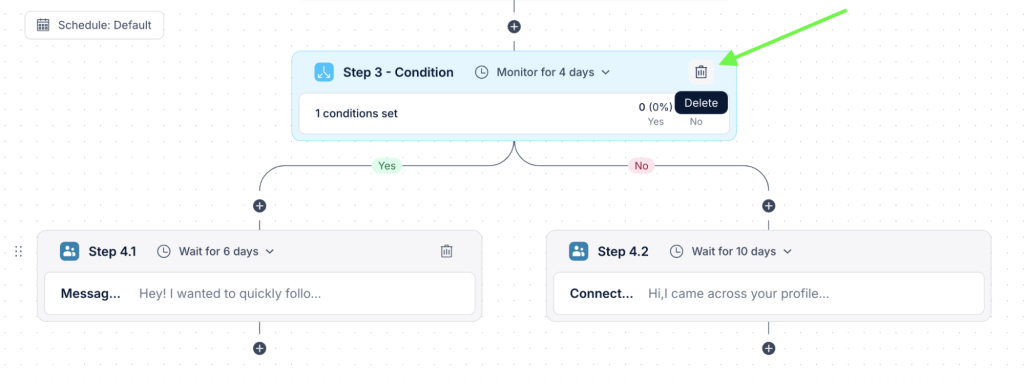
Here’s how to clean things up safely.
First: how to delete a step. It’s super simple.
Just hover over the step you want to remove.
In the top-right corner, you’ll see a little trash bin icon. Click it.
But wait, don’t just click and hope.
You’ll get three delete options.
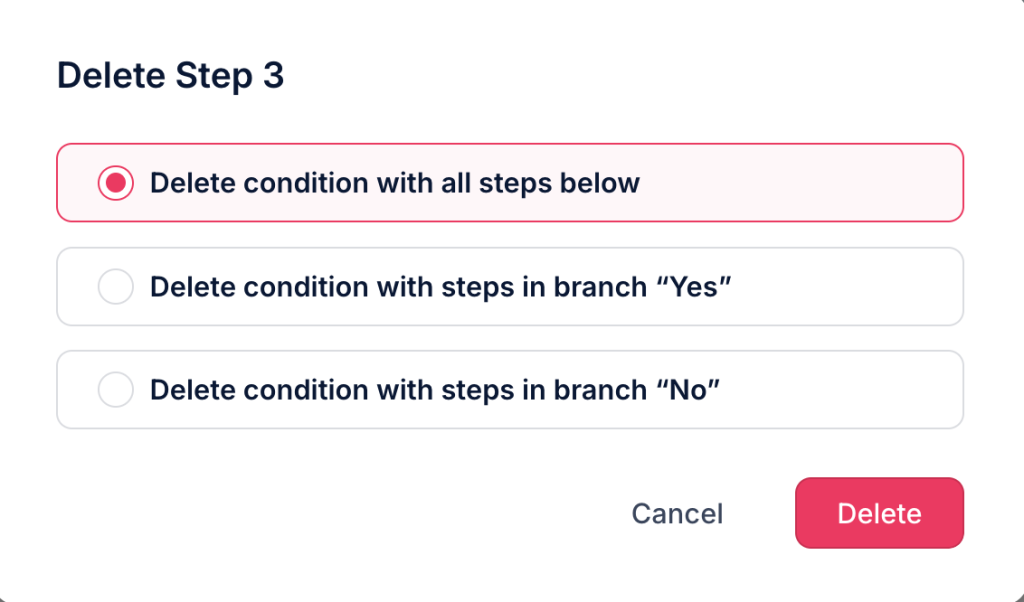
Each one does something very different.
Option 1: Delete condition with all steps below
This is the nuke.
You’re not just deleting the condition. You’re wiping out everything under it.
Both “Yes” and “No” paths. Every follow-up step. All gone.
🪓 Good if: You’re starting that part of the sequence from scratch.
⚠️ Warning: Only use this if you’re 100% sure you’re done with both branches.
Option 2: Delete condition with steps in “Yes” branch
This one keeps the condition, but removes everything under the “Yes” path.
Useful if that follow-up got too messy, or needs a full rewrite.
🧹 Good if: The “Yes” logic isn’t working but you still want to keep the condition itself.
⚠️ Tip: Be sure you don’t leave a big gap afterward. Add a new step to keep things flowing.
Option 3: Delete condition with steps in “No” branch
Same as above, but it wipes the “No” branch instead.
I use this when the fallback path doesn’t need to exist anymore (like if I no longer want to chase unengaged leads on WhatsApp).
🛠 Good if: You’ve changed your strategy for contacts who don’t take action.
⚠️ Heads-up: Just like with the “Yes” branch, you’ll want to check that everything connects smoothly afterward.
To avoid deleting the wrong thing (we’ve all done it), here’s a quick breakdown of the delete options and when to use each.
| Delete option |
What it does |
Use this if… |
| Delete condition + all steps below |
Removes the condition and everything after it |
You’re starting over and don’t need either branch |
| Delete condition + “Yes” branch only |
Keeps the condition and “No” path |
You only want to rebuild the “Yes” follow-up |
| Delete condition + “No” branch only |
Keeps the condition and “Yes” path |
You’re dropping the fallback path but keeping the main one |
And a few quick cleanup tips from experience:
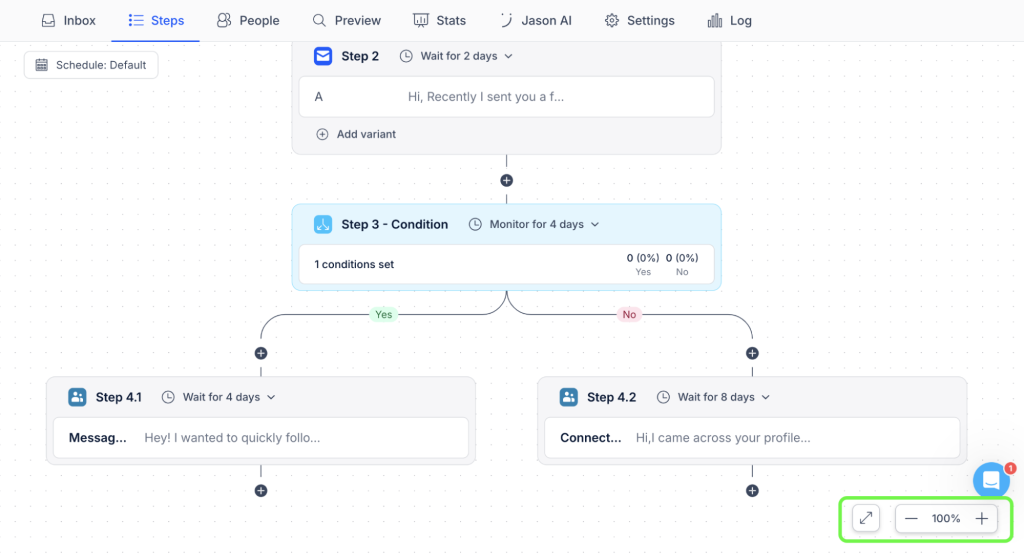
- Zoom out before you delete → Sometimes what feels like a tiny branch is actually connected to a lot more steps than you think.
- Rename steps clearly → It’s way easier to clean up when your sequence is labeled clearly (e.g., “4.1 = If opened” vs. “4.2 = No open → Try LinkedIn”).
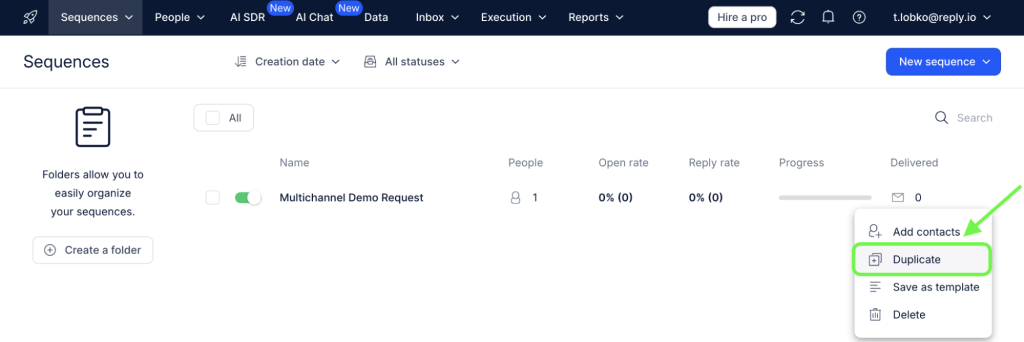
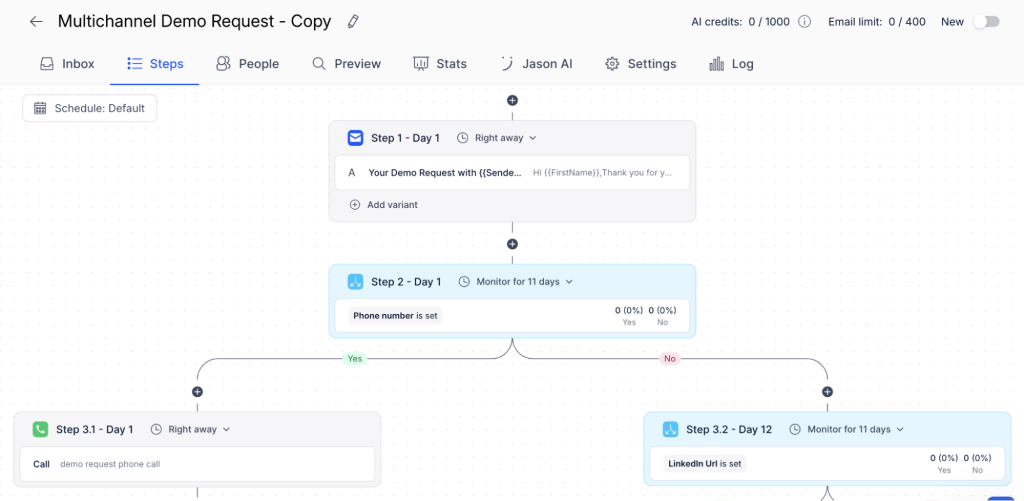
- Don’t panic → Worst case? Duplicate the sequence first, then clean the duplicate. That way, nothing’s lost for good.
Once your sequence is live and running smoothly, it’s time to track the results. Here’s how to see what’s working and what’s not.
How do I track what’s actually working?
This is where conditional sequences really earn their keep.
You’ve built your beautiful branching flow. Now it’s time to answer the real question:
Is it actually working?
I’ll be honest…this is the part I check like I check the weather.
Quick glance. Every morning.
Not because I’m obsessed, but because the insights are pure gold.
And Reply makes it easy to see which paths your leads are taking.
Start with these two spots:
1. The Stats tab
This gives you a visual breakdown of your sequence.
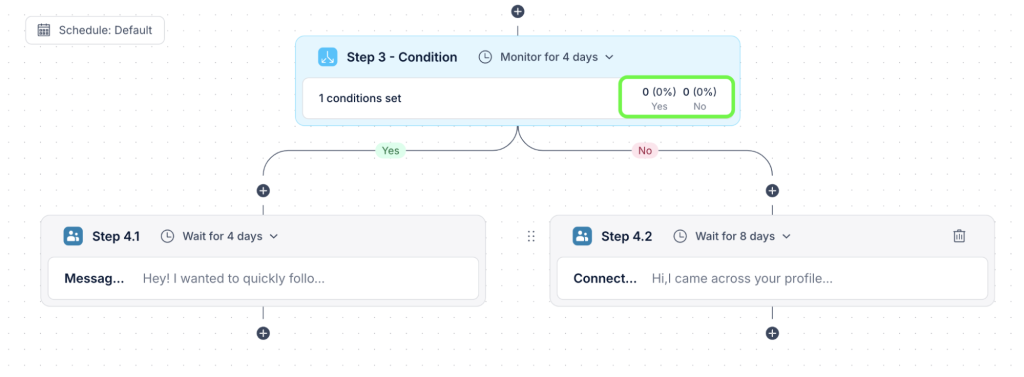
You’ll see:
- How many contacts went down each step
- Percentages for every branch (e.g., 30% went to 4.1, 70% to 4.2)
- Performance metrics for each action (opens, replies, etc.)
I treat this like a quick dashboard. In 10 seconds, I know if a step is pulling its weight or falling flat.
2. The People tab
Want to zoom in and see who went where? This is your go-to.
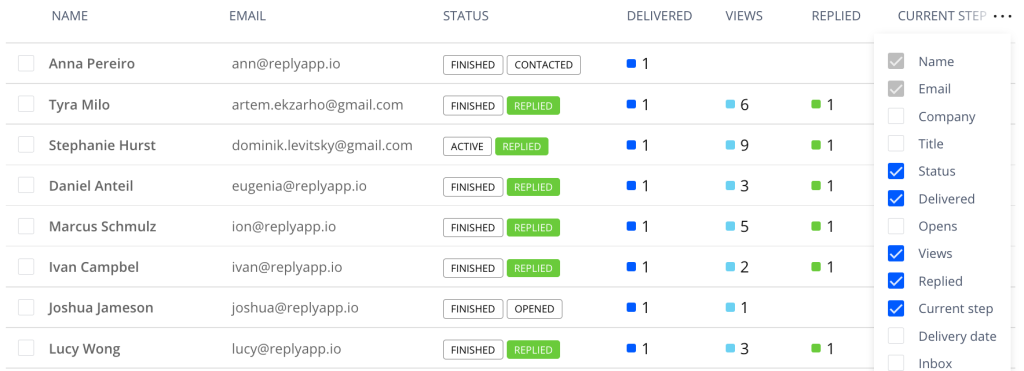
You’ll see:
- Which step each contact is currently on
- Their full path through the sequence
- Whether they triggered a condition or got stuck somewhere
This is especially useful for spotting patterns. Like, “Wow, all my high-value leads are getting stuck in the No branch…why?”
Also, one of the best things about conditional logic?
It’s like running a built-in A/B test.
If you notice most people are ending up in the “No” path (say, they’re not opening your email or not connecting on LinkedIn), then it’s probably time to tweak something:
- Shorten your subject line
- Change your intro message
- Switch channels sooner
You’re not guessing anymore. You’ve got the data.
And, if one branch is clearly outperforming the other, don’t just keep watching. Optimize the underperforming one.
Here’s another quick scan-and-fix guide I use to debug underperforming sequences.
| Red flag |
Possible cause |
Quick fix |
| Low replies after “Yes” branch |
Message isn’t relevant or clear |
Rewrite the follow-up to feel more personal |
| No one hits the “Yes” path |
Condition may be too strict or misconfigured |
Double-check filters and monitor settings |
| Too many contacts stuck in “Wait” step |
Delay may be too long or unnecessary |
Shorten the delay or use “Monitor for” instead |
| One channel always underperforms |
It may not fit your audience or message |
Test a different step type (e.g., LinkedIn → email) |
| Drop-off after action step (e.g. move to sequence) |
Sequence gap or bad timing |
Make sure next sequence starts smoothly |
Want my personal experience? Every morning (right after I check my calendar at 9AM) I pop into the Stats tab.
It takes me less than a minute. But it tells me:
- What’s working
- What’s lagging
- Where to focus next
No deep dive. No reports.
Just a quick pulse check to keep things sharp.
Thinking, “This is great, but I already have a good sequence”? You’re not alone, and no, you don’t need to start from scratch. Yet, if you’re ready to start…




![The Ultimate Email Deliverability Toolset for 2026 [15+ Tools]](https://test.reply.io/wp-content/uploads/deliverability-300x158.jpg "The Ultimate Email Deliverability Toolset for 2026 [15+ Tools]")